
Two screens, two different answers
Your client says there were 20 appointments this month. The dashboard says 16. Someone opens the calendar, counts the boxes, and gets a third number. Now the reporting call has become a detective story.
When GoHighLevel appointment numbers do not match, the first thing to check is whether the screens are answering the same question. Appointments booked, appointments taking place, appointments attended, and upcoming appointments can describe very different groups of records.
Here is how to narrow it down before changing a widget or deciding the dashboard is broken. The dashboard screenshots in this guide use preview data from different views; they are illustrations, not a customer case study or a single set of results.
Start with what the number counts
Write down the label on each screen. Not just appointments, but the whole label: appointments created, appointments scheduled, showed appointments, or upcoming appointments. Those extra words are doing important work.
HighLevel’s widget reference lists separate appointment metrics for bookings, attendance statuses, upcoming appointments, and appointments created during a period. A total from one of those widgets is not automatically comparable with another.
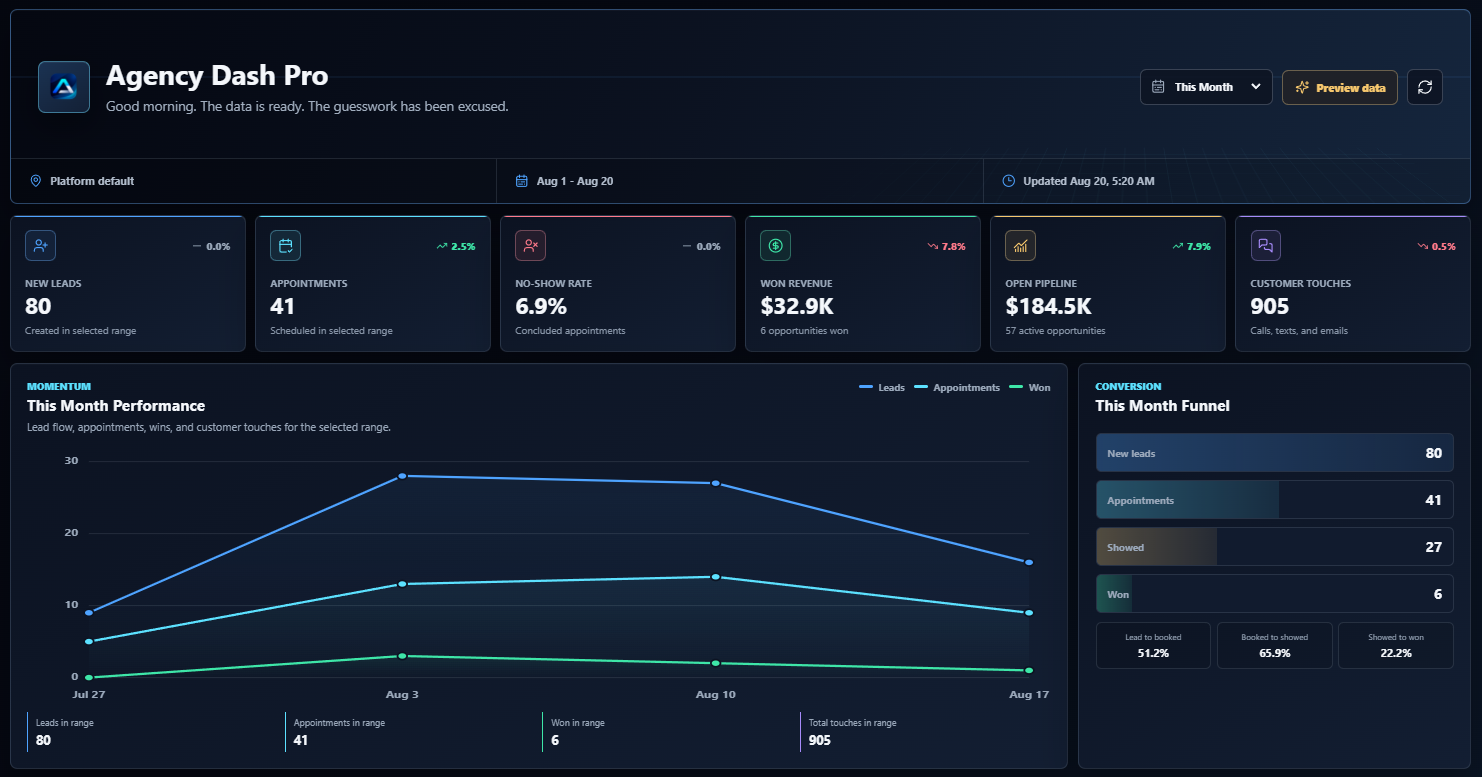
In this flagship Agency Dash Pro preview, the card says Appointments and adds Scheduled in selected range underneath. That second line helps you interpret the count. Whenever a dashboard number looks wrong, read the supporting label before comparing it with a different report.
Match the dates before comparing totals
An appointment booked on September 30 for a meeting on October 3 has two useful dates. A report based on creation date can place that booking in September. A report based on appointment time can place the meeting in October. Neither number has to be wrong.
Check the exact date range, the field it applies to, and the reporting timezone. This Month is a convenient label, but it does not explain whether a view is counting newly created bookings or meetings scheduled to happen during that month.
For appointments close to midnight or the start of a month, compare the actual timestamps in the same timezone. Then make sure you have selected the same client account and calendars. Comparing a consultation calendar with every calendar in the account will create a mismatch before you even get to the attendance statuses.
Check the statuses and the saved view
A calendar booking does not tell you how the appointment ended. Someone may have attended, cancelled, failed to show up, or moved the meeting. If the outcome has not been recorded accurately, an attendance report has incomplete information to work with.
HighLevel’s Appointment List View supports filters for status, calendar, assigned user, and appointment date or time. Its documentation also explains how saved Smart Lists affect the visible records. Use those controls to compare a small group of appointments rather than guessing from the headline totals.
Check whether the two views include the same statuses. Are cancellations excluded on one screen? Is the list showing only one team member? Has a past appointment remained Confirmed because nobody recorded the outcome? Review the record and update it to reflect what actually happened. Do not mark every past booking as Showed just to make the totals line up.
Show rate depends on who is included
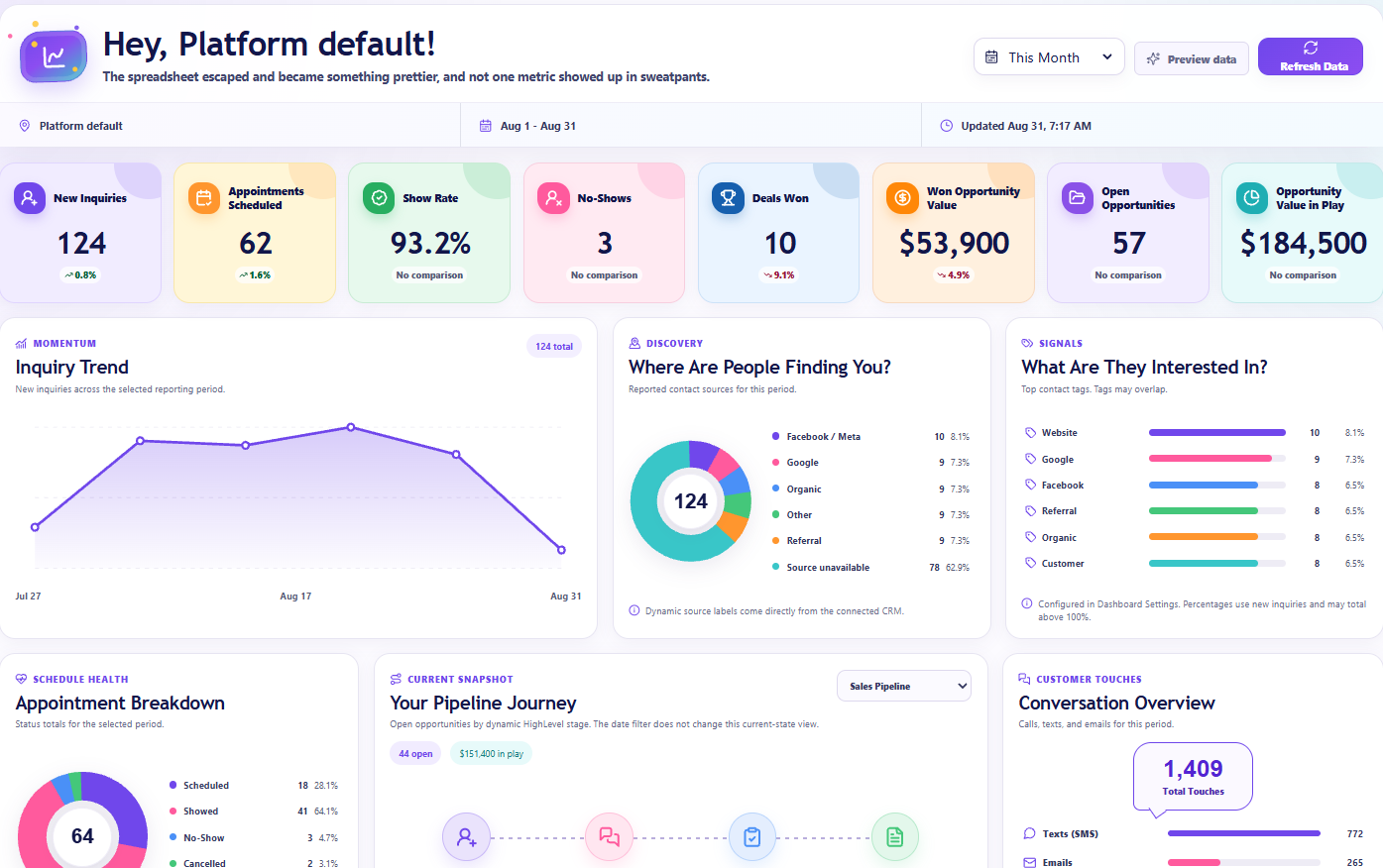
Here is where percentages can get confusing. A show-rate card needs a numerator and a denominator: how many appointments were attended, divided by which group of appointments? If the group changes, the percentage changes too.
Take an arithmetic-only example: 50 bookings, with 30 attended, five no-shows, five cancellations, and ten future appointments. If you calculate attendance among the 35 showed-or-no-show outcomes, the show rate is 30 divided by 35, or 85.7%. If you divide those same 30 attended appointments by all 50 bookings, you get 60%.
Those figures answer different questions. They are not customer results, and they are separate from the preview numbers below. The useful step is to check your actual widget or template definition before comparing rates. Do not assume every GoHighLevel dashboard uses the same show-rate calculation.
The same rule applies to no-show rate. Show rate and no-show rate add up to 100% only when they use the same denominator and their included outcomes are limited to those two statuses. Future bookings and cancellations need an explicit place in the definition.
Upcoming appointments are a separate question
A monthly appointment KPI helps explain a reporting period. An upcoming appointments list helps someone plan what is next. Expecting them to have identical counts is like expecting last month’s sales total to match today’s to-do list.
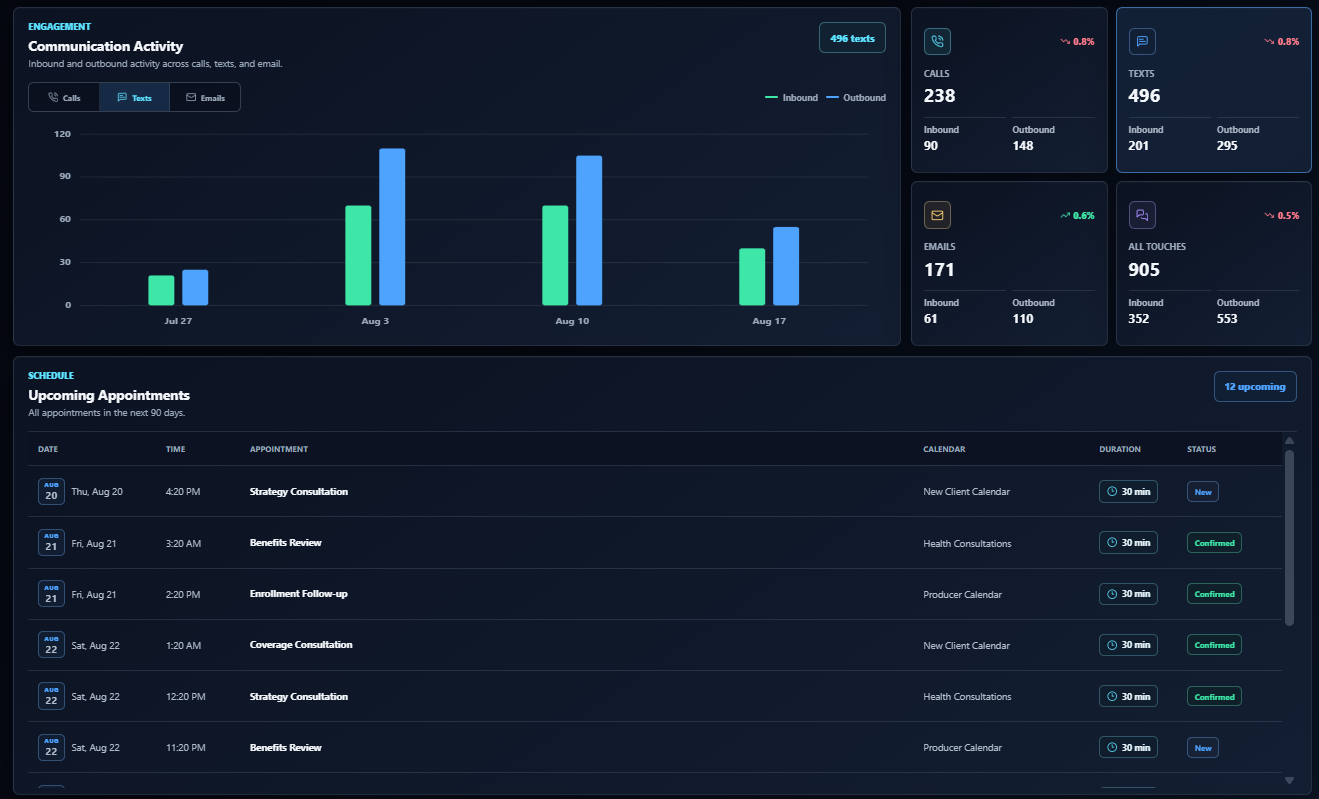
In the flagship preview below, the Upcoming Appointments panel explicitly says it covers the next 90 days. That is a different window from a monthly reporting card. A person looking at both needs that distinction spelled out.
When an upcoming list seems to be missing a booking, check the appointment time, calendar, and statuses included in that list. When a past-period count changes after a reschedule, inspect the underlying appointment and the date field used by the report before treating the change as a duplicate or a lost record.
Check when the dashboard last refreshed
One more easy-to-miss detail: you may be looking at two different moments in time. If you just corrected an appointment status, a separately refreshed reporting view may still show the earlier version until its next successful update.
Agency Dash Pro handles reporting refreshes in the background and displays its latest published reporting snapshot. Check the dashboard’s update information when comparing it with a status you have just changed in HighLevel. Reloading the browser and refreshing the underlying reporting data are not necessarily the same operation.
If the connection looks unhealthy or an update is overdue, investigate that before doing more arithmetic. Waiting for a successful update can resolve a timing difference. It will not fix mismatched calendar filters or two metrics that count different appointment groups.
Reconcile a few records, then explain the total
The fastest useful check is usually a small one. Pick a calendar and a short date range. Compare the appointment records behind the two totals, then look for the first record included on one side and missing on the other.
For that record, compare the client account, calendar, date field, timezone, status, and last update. If you cannot inspect the underlying records from a particular dashboard, use HighLevel’s appointment list as a reference and check the dashboard’s documented reporting scope. Fix the explanation or configuration that actually differs, then compare the totals again.
A clear client reporting dashboard makes these conversations easier because the period, labels, and refresh information are visible. Our guide to seven client dashboard metrics covers how appointment reporting fits alongside leads, wins, pipeline, and communication activity.
If the records still do not reconcile after those checks, use the support page to explain which view, reporting period, and count disagree. A specific example is much more useful than saying the numbers look off.
And when a client asks why two appointment totals are different, you can give them a real answer: these views count different dates, statuses, or groups of appointments. That is a better reporting conversation than moving charts around and hoping the numbers become friends.